Recent projects we’ve been working on

July 4, 2008

The year is flying by and I keep thinking I must blog about a few of the recent sites that we’ve been working on which have now launched, so without further ado:

  • Channel Flip - we worked with the team behind this site who are based in the UK and making some fantastic online videos so completely redesign their site (logo excluded) and implement it in Wordpress with lots of handy little features such as a forum view of the site.
  • Lost at E Minor - we worked with the guys behind this site who are based in Australia and implemented Andrew Whitehead’s design in Wordpress. It’s a great example of an intricate magazine site still being powered by Wordpress and has tonnes of fascinating content as well.
  • Cheap Stingy Bargains - we’ve been tweaking their site adding new features and custom plugins for them - again this massive site runs on Wordpress!
  • Street Speculator - design and implementation and support for a much simpler blog in Wordpress.
  • Digital Soapbox - a simple Drupal site where bloggers’ posts can be voted on.

A nice Wordpress 2.5 admin hack

April 15, 2008

There’s lots of things I like about Wordpress 2.5, but the admin panel has taken some getting used to - I’ve felt quite disoriented often because things aren’t where I was used to them being.

I thought I’d give it a bit of time before writing about my thoughts.

I think that for new Wordpress users, things are much better organized in general than they used to be but some things leave my scratching my head. Why is “Design” put before “Comments” in the top menu? Why is “Comments” in the main menu when it’s really a part of “Manage”? Why are Settings, Plugins and Users so hard for me to get used to being in the top right?

One general thing that has caused problems for some clients who are seasoned Wordpress users: moving categories, post author and other meta information below the post box, rather than to the right and having draft posts listed up the top of pages, rather than hunting for them. Also, it allows the post box to be wider if you have a wide screen, rather than limiting it.

A massive thanks to Judy from Persistent Illusion for providing a Wordpress 2.5 admin hack to solve this problem. As usual, use at your own risk and back up your files to be sure but I have found this invaluable already.

Check this screenshot of how the admin panel will look after applying her hack versus how it would look beforehand. Make sure you show your support for this change to be a part of Wordpress 2.6 if you find it useful!

Wordpress tip: what to do if it’s too slow/impossible logging into your Wordpress admin area?

April 14, 2008

If something starts going strange or not working on your Wordpress blog, one of the most common causes is a plugin.

Written by third parties, plugins are one of the best parts about Wordpress - there’s so many of them out there which can add extra features or functionality to a basic install of Wordpress. So many of them are invaluable and almost standard when we set up a blog for clients.

Lately, we’ve run into a few problems caused by plugins and thought that sharing them might help you if you end up having the same sort of problem.

Here’s the first tip:

Does your site suddenly become very slow or impossible to log into the Wordpress admin area but the rest of your site is running fine?

A plugin could be the cause. Some plugins connect back to the plugin author’s website to see if there are new versions available. Nice and handy to be told when there is one, but not so great when the plugin’s website server is down, or having problems. Because it can’t connect, it may tie up your own admin area as well. This happened recently with aLinks - an awesome plugin - but it stopped others getting into their admin area.

Quick solution: disable the plugin until the other site is back up by moving the plugin folder outside of your Wordpress plugin directory. The usual method of disabling by unticking it on the plugins page won’t work if you can’t get into the admin area!

Questions around organizing my life online vs information overload

March 3, 2008

More and more tools are being released which help you communicate with the wider world and my question always seems to be organizing which of the organizers I should be using and the best way of using them together (if there is such a thing!). What follows is a jumble of thoughts of these issues.

Some personal examples are:

My blog(s)
Flickr
Facebook
Twitter
Tumblr
Google Reader
del.icio.us
YouTube
Feedfriend
Amazon wishlist
Last.fm

Questions I ponder which span all these examples above:

Is there such a line as the personal/work divide anymore?
Is pooling everything all together into one place the solution?
Is using all these examples separately the solution?
Who is the solution for? Me, my friends, my readers? Actually, does it matter who the solution is for anymore?
Do other people really need (or want) to know my Amazon wishlist (etc) or do I just want quick access to it?
Can x do something that y can’t do already? Or does it just make it faster and quicker but with a bit of work, I could just use x and keep two things together in one place?

Wavering between one tool to rule them all and then back to individuality reigns

I’ve set up accounts on so many sites and then come back to tools which promise the best of everything all in one place - such as Netvibes or Google Reader - but I find myself using them for a while and then moving back to the individual sites.

A good example of this is our local news sites. It’s too much information overload to subscribe via Google Reader so I just load up their homepages and take a quick glance to see what’s their big and latest headlines every so often. Is there a quick tool which shows “what’s on the homepage” of a site right now?

Another example is twitter and Facebook status. Having twhirl or some other twitter client open all the time, there’s a constant flood of messages. My eyes glaze over and when I log out and turn it on again, there’s a ridiculous number of status updates that have flown by. Information overload. Is there a quick way to see one most latest status update for each of my contacts, in one place - a little like the most recent Facebook status list that you can see? Something I can take a quick glance at? I prefer Twitter because it’s exportable, it’s RSS and I can use it how I like but does it help me or just distract me?

Every so often, I give Netvibes or Google Desktop Sidebar a go. I find myself being given a limited number of tools and the gimicks/widgets wear off quickly. I don’t really need today’s weather, today’s quote, a photo slideshow, or how many unread emails I have. I end up scrapping these and going back to having multiple tabs open, and a bookmarks toolbar for quick access to everything.

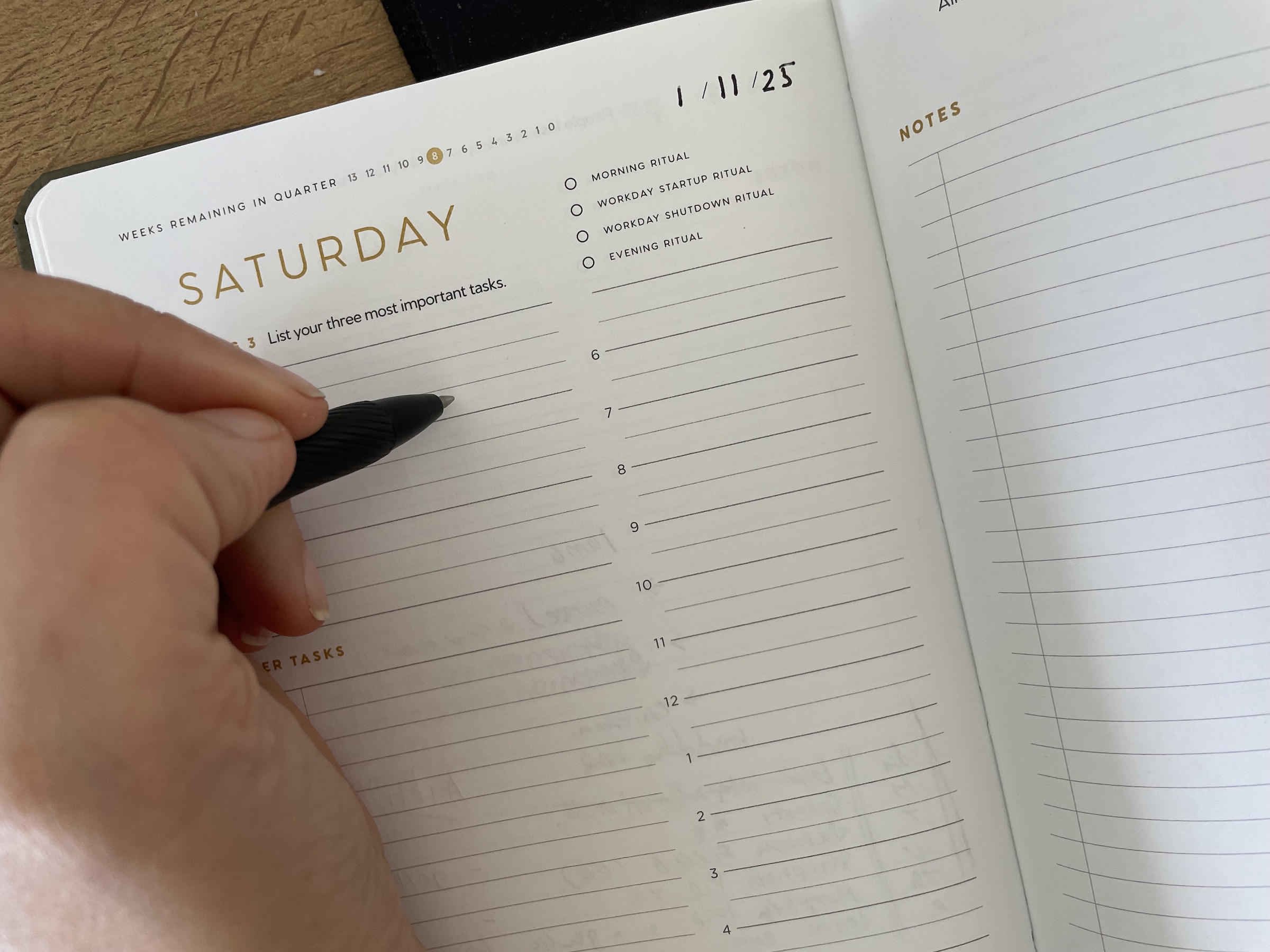
I’ve tried Remember the Milk and other to-do lists but end up back with my paper diary that I can enjoy the feeling of crossing things off from and some important reminders on my phone.

Do you have any suggestions, similar ponderings or behaviours as me?

How to organize posts into two side-by-side columns in Wordpress

March 1, 2008

I recently received an email asking for some Wordpress advice on making posts show up in columns just like on 9antivirus.com and thought I’d share one way of doing this.

I’ve set up a demo blog showing how it looks after the code is implemented.

There are two theme files to be edited: index.php and style.css. I have just edited the default Kubrick theme, so adjust this to suit your own theme.

The basic idea is to add a “switch” so Wordpress knows if you’re looking at a post which will appear in the first or second column.

In index.php I added code in four places:

Before the Wordpress loop starts:

<?php $col = 1; ?>

I.e. we set up the switch to start off in the first column.

Just after the Wordpress loop starts:

<?php if ($col == 1) echo "<div class=\"row\">"; ?>

Start a new row if we’re in the left hand column.

Inside the Wordpress loop:

Add in the switch:

<div class="post col<?php echo $col;?>" id="post-<?php the_ID(); ?>">

I.e. I added in col<?php echo $col;?> to the post’s class. We’ll use CSS to decide how to display posts in each column.

Just before the end of the Wordpress loop:

Change the switch and the row:

<?php if ($col == 1) echo "</div>"; (($col==1) ? $col=2 : $col=1); endwhile; ?>

The Wordpress loop ends with endwhile.

Just before this, I do two things: finish the row and I make $col switch between the first or second column. If you haven’t seen code like this before, this is what it’s doing:

Are we in the first column?
Yes: Move to the second column.
No: Move to the first column.

In style.css I added three lines of code at the very bottom:

.row { clear: both; }
.col1 { width: 200px; float: left; padding: 0 10px; }
.col2 { width: 200px; float: right; padding: 0 10px; }

If you’re using a different theme, you may need to adjust the column widths and the amount of padding.

Using a row div forces the two posts to always line up with each other, even if the excerpts are different lengths.

Screensavers Dating Services Match Hotels online boeken Performance Management
Cell Phone Unlock Codes - USA Website Templates Psychic Reading